 qube
slack + qube: a virtual office solution for remote workers
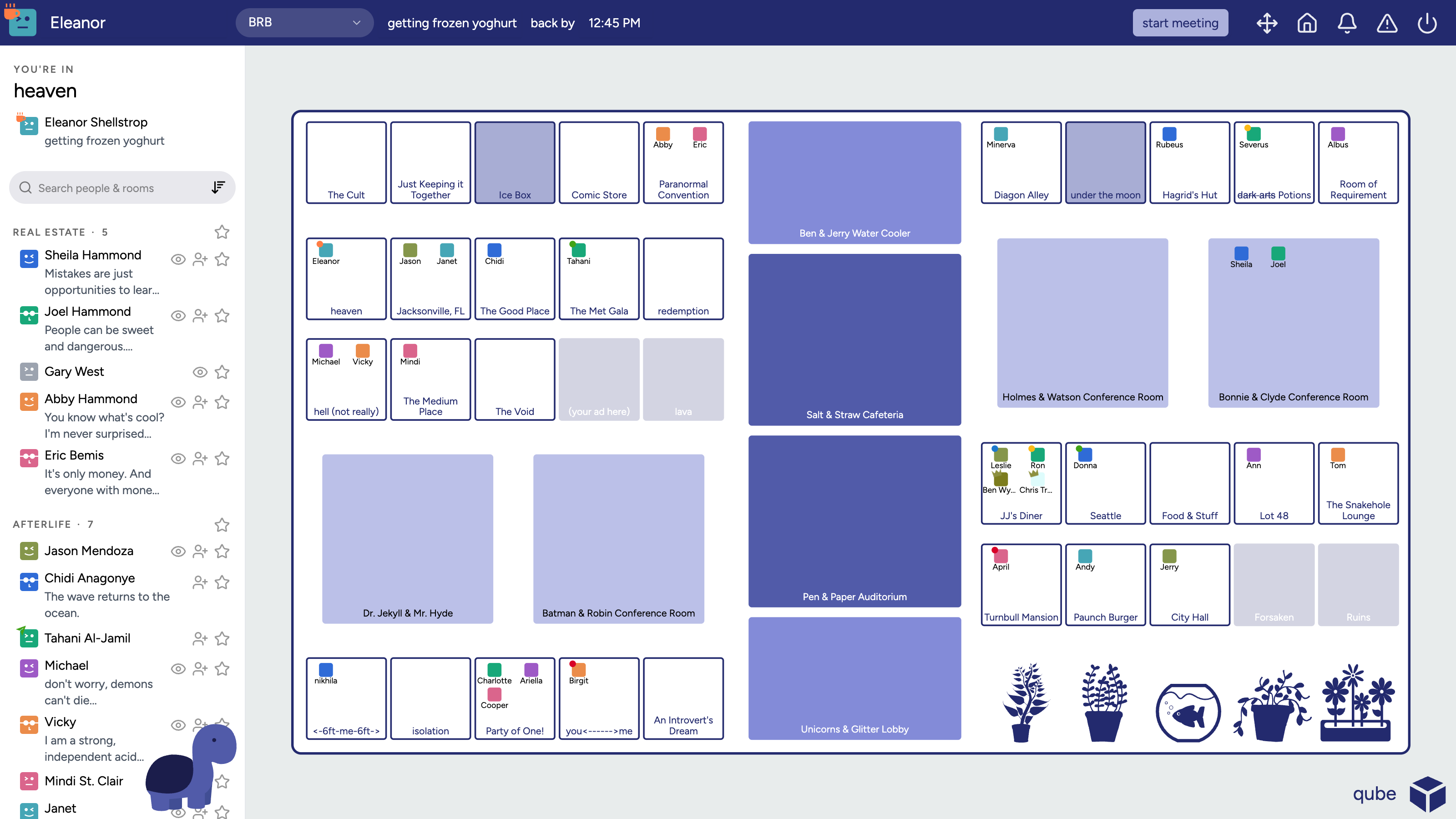
qube gives your remote team a floor plan. Everyone has an office, you can see who is in, who is in a meeting, and who has stepped away. The Slack app makes that map and your Slack workspace tell the same story: sign in with Slack, keep your Slack status in sync with what you are doing in qube, and get a friendly nudge in Slack when you forget to come back.
Runs in your browser. Nothing to install on your computer.
How qube works in Slack
qube does not try to replace Slack conversations. It uses Slack for three things: knowing who you are, keeping your status truthful, and reaching you when it matters.
1Sign in with Slack
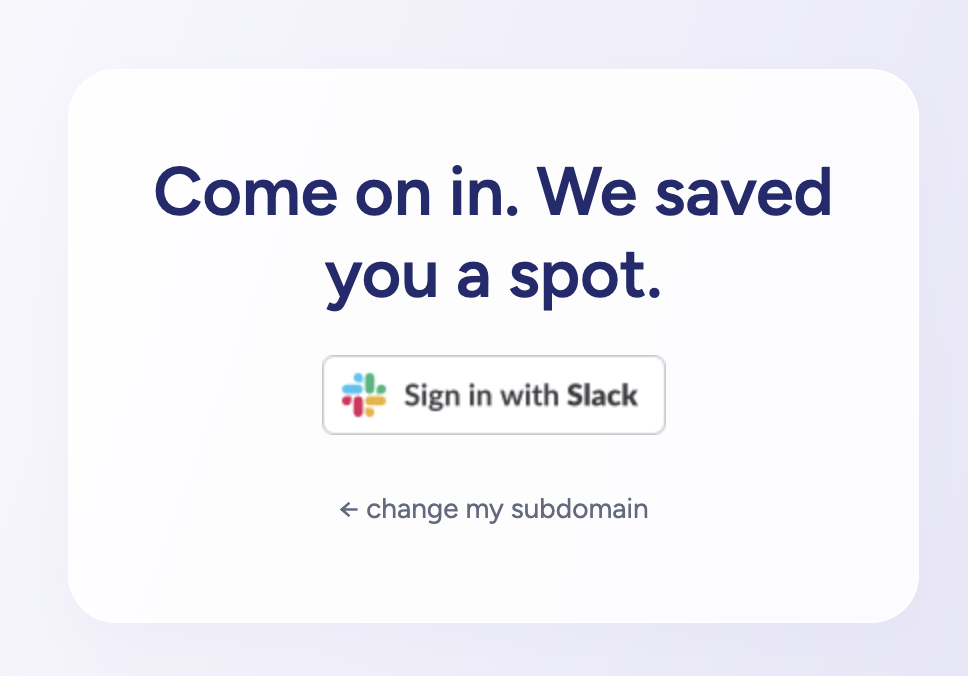
Your team signs in to qube with their Slack account. No separate password to remember. qube matches the Slack account to a qube account by email address. If the office allows self-registration, a teammate signing in for the first time gets an office straight away; otherwise an administrator invites them first.

2Your Slack status, kept in sync
Set yourself to busy, focused, BRB or away in qube, add a note such as "a quick ice cream break, back by 4:15", and qube writes it to your Slack status for you. Walk into a Zoom meeting from the office map and your Slack status says so. Your existing status emoji is left alone.
3A nudge when you forget to come back
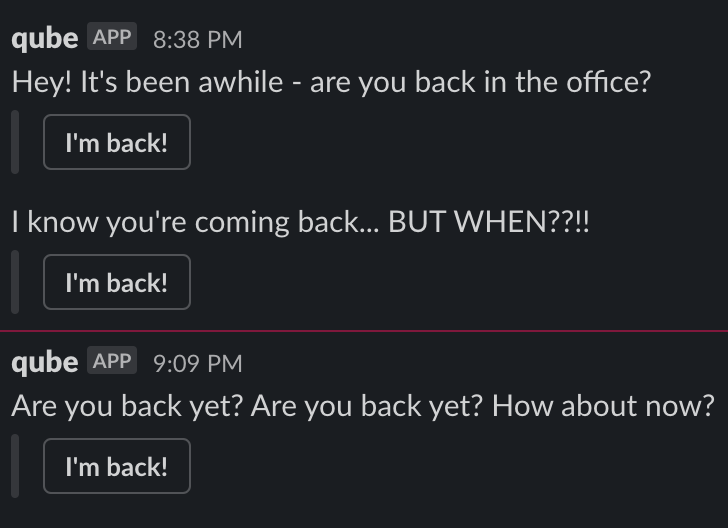
Said you would be back by 4:15 and it is now 4:40? qube sends you a direct message in Slack with an I'm back! button. One click and you are back at your desk in qube with your Slack status cleared.
4One click from the office to a Slack conversation
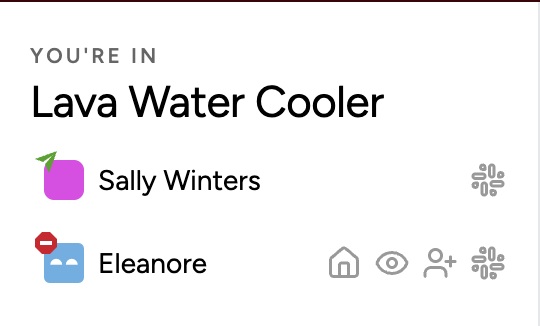
When you are in a room with colleagues, qube offers a link that opens a Slack direct message, or a group message with everyone in the room, so you can drop a link or a note without hunting for the right people.
5Know when someone is free
Watch a colleague who is busy or in a meeting and qube sends you a Slack direct message the moment they are available again. When you mark yourself as feeling social, qube tells you who else is, so a coffee chat is one click away.
6Update qube without leaving Slack
Type /qube followed by a status to update your qube status from Slack. qube replies privately with buttons to set your state and back-by time. /qube watching, /qube watchers and /qube help round it out.
What you will see in Slack
- A qube app in your workspace's Apps list, and a
/qubeslash command. - Direct messages from qube for reminders, watch notifications and social invitations. They go to you alone.
- Your own status updating as you move around the office. qube writes status text only and never reads your messages.
- Optional channel posts. If an administrator turns on guest or partner passes and picks a channel for them, qube posts a short arrival notice to that channel when a visitor enters. Nothing is posted to channels otherwise.
- A permission screen the first time each person signs in, listing exactly what qube can do with their account. The full list is below.
qube does not read channel or direct-message content.
Installing qube in your Slack workspace
qube is installed by the person setting up the office, who needs to be a Slack workspace admin. Everyone else just signs in. The setup wizard takes a few minutes:
- Start setup. Open the setup page and enter your email. We send a link so you can resume if you get interrupted.
- Add to Slack. Click Add to Slack in the wizard. Slack shows the permission screen; choose the workspace and click Allow. You are returned to the wizard with Slack marked as connected.
- Connect Zoom. Authorize qube with your Zoom account so rooms can start meetings. See how qube uses Zoom and the Zoom setup guide.
- Pick an office size. qube builds floors with enough offices for your team.
- Invite your team. Your office gets its own address. Share it, and people sign in with Slack.
Ready to try it?
Setup creates a qube office for your team and walks you through connecting Slack and Zoom.
Already have an office? Open its address and sign in with Slack.
Permissions qube asks for, and why
Slack separates what the app can do in the workspace from what it can do on behalf of each person who signs in. Here is every permission qube requests and what it is used for.
Workspace (bot) permissions
| Permission | What qube uses it for |
|---|---|
chat:write | Send you direct messages: back-by reminders, watch notifications, social invitations and replies to the /qube command. |
im:write, im:read | Open the direct message conversation between you and qube so those messages can be delivered, and find it again later. |
mpim:write, mpim:read | Open a group direct message with the people in a room when qube offers a group conversation link. |
chat:write.public, channels:read | Let an administrator pick a channel for guest and partner arrival notices, and post those notices there. Used only when that feature is turned on. |
commands | Provide the /qube slash command. |
users:read, users:read.email | Look up your Slack profile when you sign in, match it to your qube account by email, check your Slack presence, and keep your current status emoji when qube writes status text. |
team:read | Read the workspace name and domain during installation so the right qube office is linked to the right Slack workspace. |
Per-person (user) permissions, granted at sign-in
| Permission | What qube uses it for |
|---|---|
users.profile:write | Write your qube status and back-by time into your Slack status text. |
im:write, im:read | Open a direct message on your behalf when you click the Slack link next to a colleague in a room. |
mpim:write, mpim:read | Open a group message on your behalf with everyone in the room, so the conversation starts with the right people in it. |
qube stores your Slack user id, the workspace id, and the tokens Slack issues so it can do the above. It does not store message content. Uninstalling the app from Slack revokes those tokens on Slack's side, and deleting your qube office removes them from qube. Full details are in the privacy policy.
How qube uses Zoom
Knock, and you are in a meeting
Double-click someone's office to knock. Everyone in that office gets a notification; when someone accepts you are pulled into the office and an instant Zoom meeting opens for everyone there. No links to paste.
Rooms with a start button
Conference rooms and common spaces are open to anyone. Walk in and click start meeting. Invite a colleague from the side panel and, if they accept, they join the running Zoom meeting.
Meetings that clean up after themselves
When the Zoom meeting ends, everyone is sent home automatically. Scheduled Zoom meetings that you start outside qube update your status to busy, and your Slack status along with it.
Zoom is connected once, by the office administrator, during setup. Each person's Zoom account is matched by the email address on their Slack profile, which is why setup asks that your Slack and Zoom emails match. The Zoom setup guide has screenshots of each step.
Support
Email qube@seeq.com with questions, bugs or ideas, or use the support page. You do not need an account to get help, and we reply within two business days.
qube is built by Seeq Corporation, a remote-first company, for its own team first.